
Administration
Accessing the Admin Dashboard
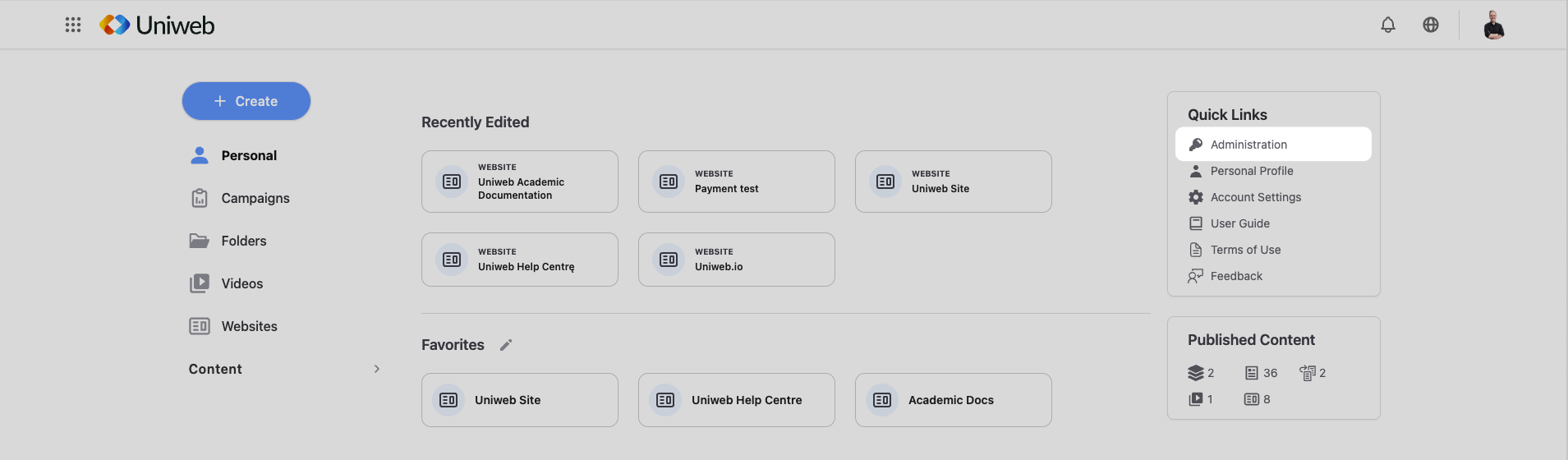
From the Uniweb dashboard, locate the Quick Links panel on the right.
Click Administration.
Admin Dashboard Overview
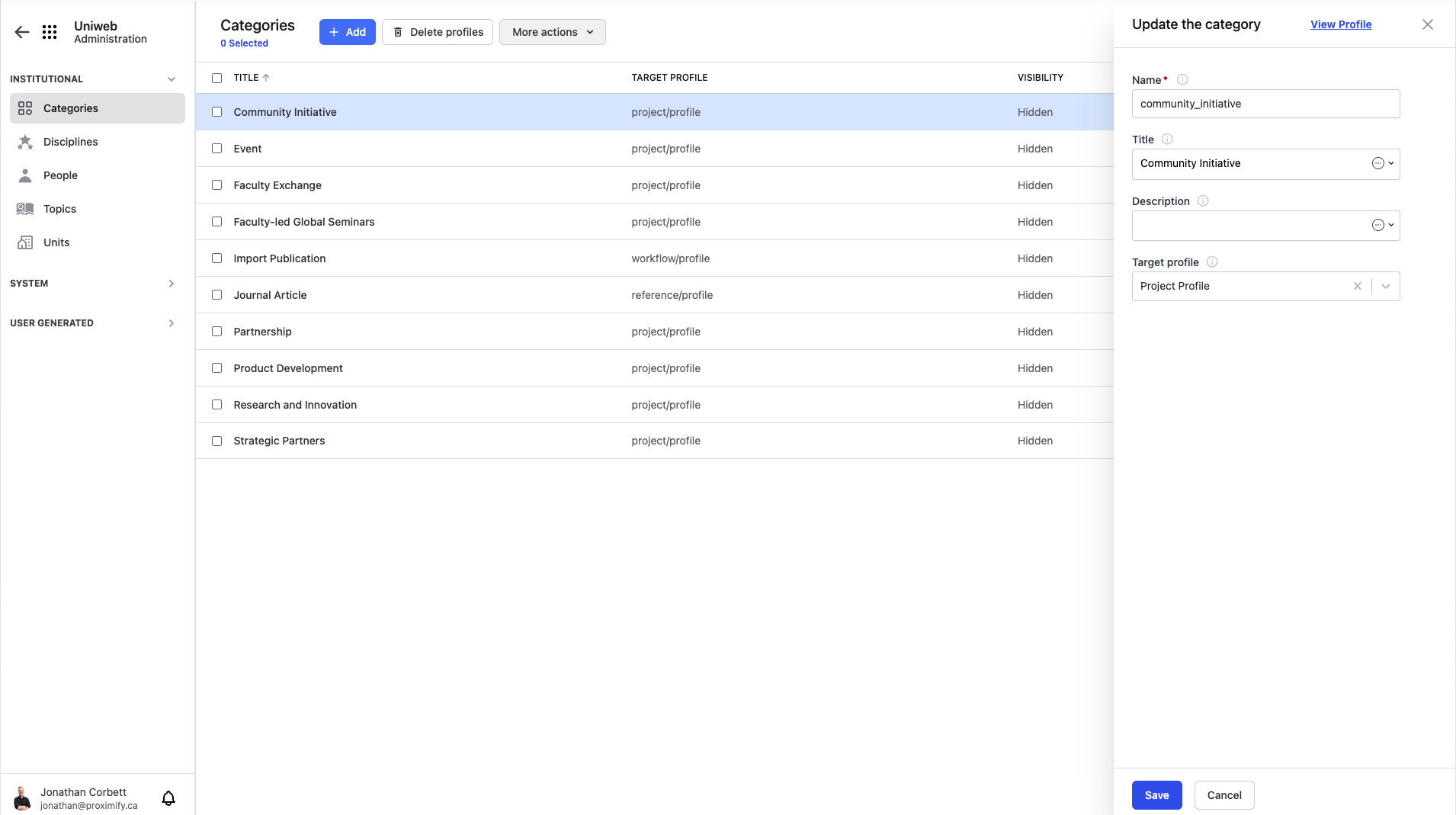
On the left-hand side of the screen is the list of all profiles that you can manage as an administrator in 3 categories:
Institutional: These are profiles that are used primarily for categorizing information as well as members. They can be created and modified and are used in other places in the Uniweb app.
System: These are profiles that are used by the system, such as roles, which is used for access control on Uniweb.
User Generated: As the name implies, these profiles are those that can be generated by users on Uniweb.
These categories will have various options shown in them depending on your access level. Clicking on a category will show you all the profiles within that category in the middle panel.
Clicking on one profile will open a menu on the right-hand side where you can edit the basic information. You can click View profile at the top of the menu to view and edit the entire profile.
Managing Profiles
To manage a profile individually, simply click
to the right of the profile name.
To manage profiles in bulk, select the checkboxes on the left side and click More actions in the toolbar to apply bulk actions. You can also delete profiles in bulk by clicking Delete profiles.
Importing Profiles
Certain profiles can be imported from an Excel spreadsheet. If the type you have selected can be imported, you will see a green import button in the toolbar.
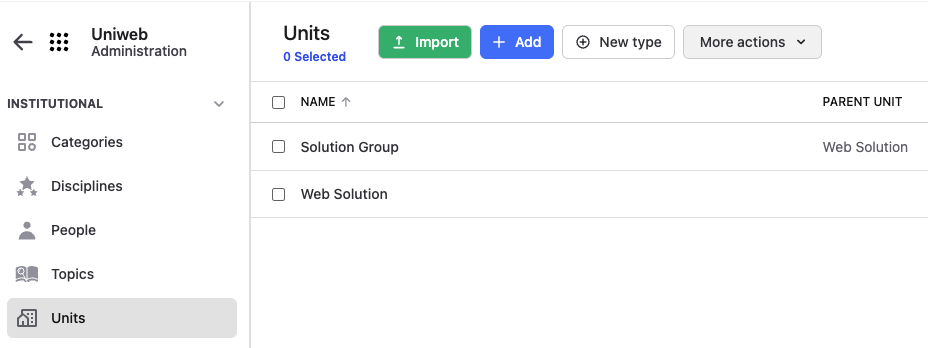
This will open a popup where you can download a template to ensure your data is formatted correctly. Once your data is ready, simply upload the file, click Upload and the data will be imported.
- Previous
- Video